

Before you start
- A WingUp Business account, as the business owner.
- A connected calendar: Google Calendar or Outlook Calendar.
- A Zoom account for the business. The meetings are made in the account you connect.
Adding the app
1
Open Connections
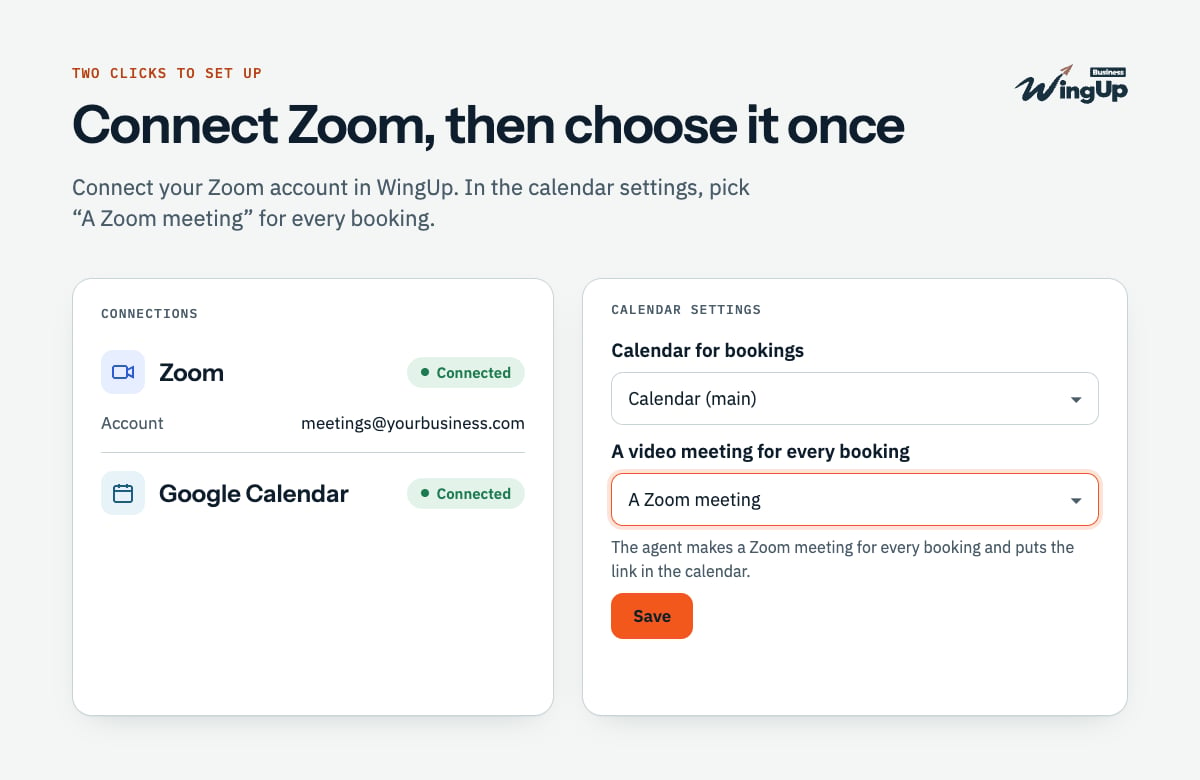
In the WingUp app, go to Connections and open Zoom.
2
Connect
Press Connect. Sign in to the business’s Zoom account and press Allow.
3
Turn it on for bookings
On the same page, open your calendar (Google Calendar or Outlook Calendar). Under
A video meeting for every booking, choose A Zoom meeting, and press Save.
Using the app
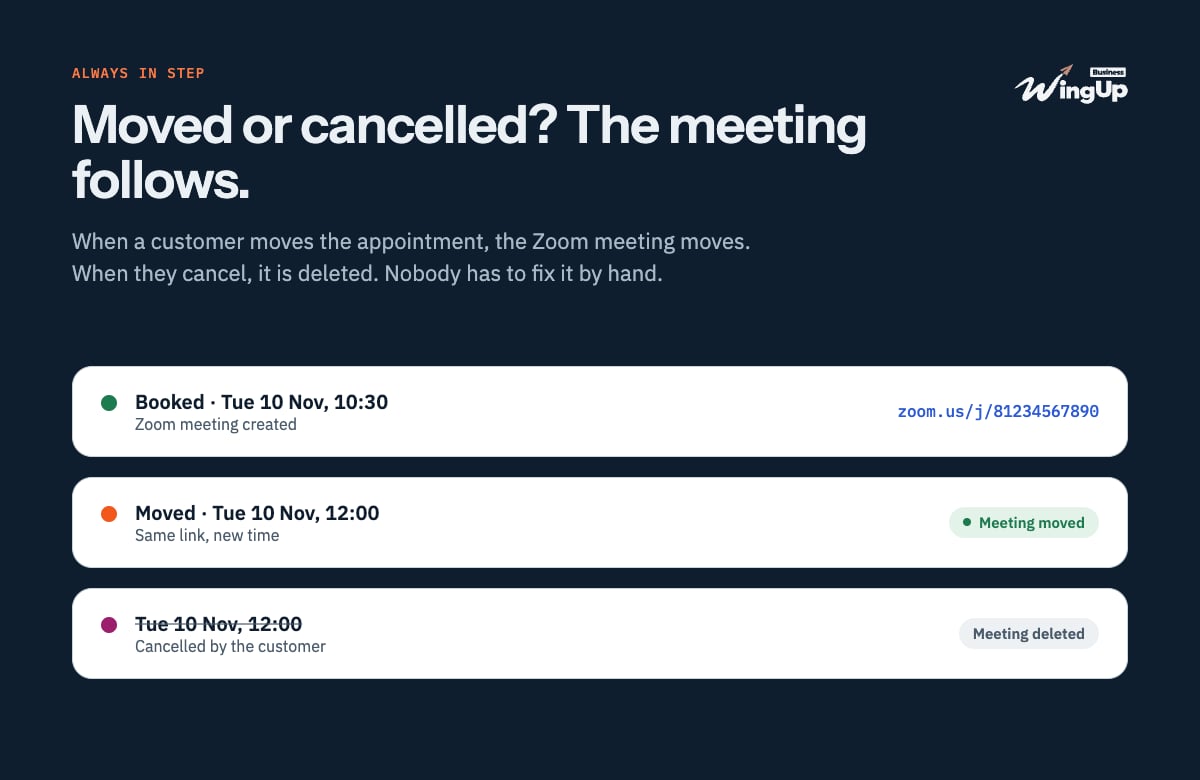
You do not need to do anything after setup:- A new appointment gets a Zoom meeting. The link is in the calendar event.
- A moved appointment moves its Zoom meeting. The link stays the same.
- A cancelled appointment deletes its Zoom meeting.
What WingUp can see and do
Permissions WingUp asks for:
meeting:write:meeting, meeting:update:meeting, meeting:delete:meeting,
user:read:user.
Removing the app
You can remove it in WingUp or in Zoom. Either way, WingUp deletes its Zoom tokens at once.- In WingUp: Connections → Zoom → Disconnect.
- In Zoom: sign in at marketplace.zoom.us, go to Manage → Added Apps, find WingUp Business, and press Remove.