

- A person can belong to several units, with a different role in each. For example, a surgeon who works in Tel Aviv and in Haifa, or a manager in one branch who helps in another.
- A person in a unit also sees the units under it. The head of Tel Aviv sees the Retina clinic under it.
- The owner sees everything, always, and belongs to no unit.
Before you start
You need the owner’s account, and the people must be on your team first (Settings → Team and roles → Invite). Only the owner puts people in units.From a unit’s page
1
Open the unit
Go to Settings → Organisation structure and open the unit.
2
Open People
Open the People tab (or press the People card at the top).
3
Add a person
Choose a person, choose their Role here (or keep Their business role), and press Add a person.
4
Mark the manager (optional)
Press Manages it next to the person who manages the unit.
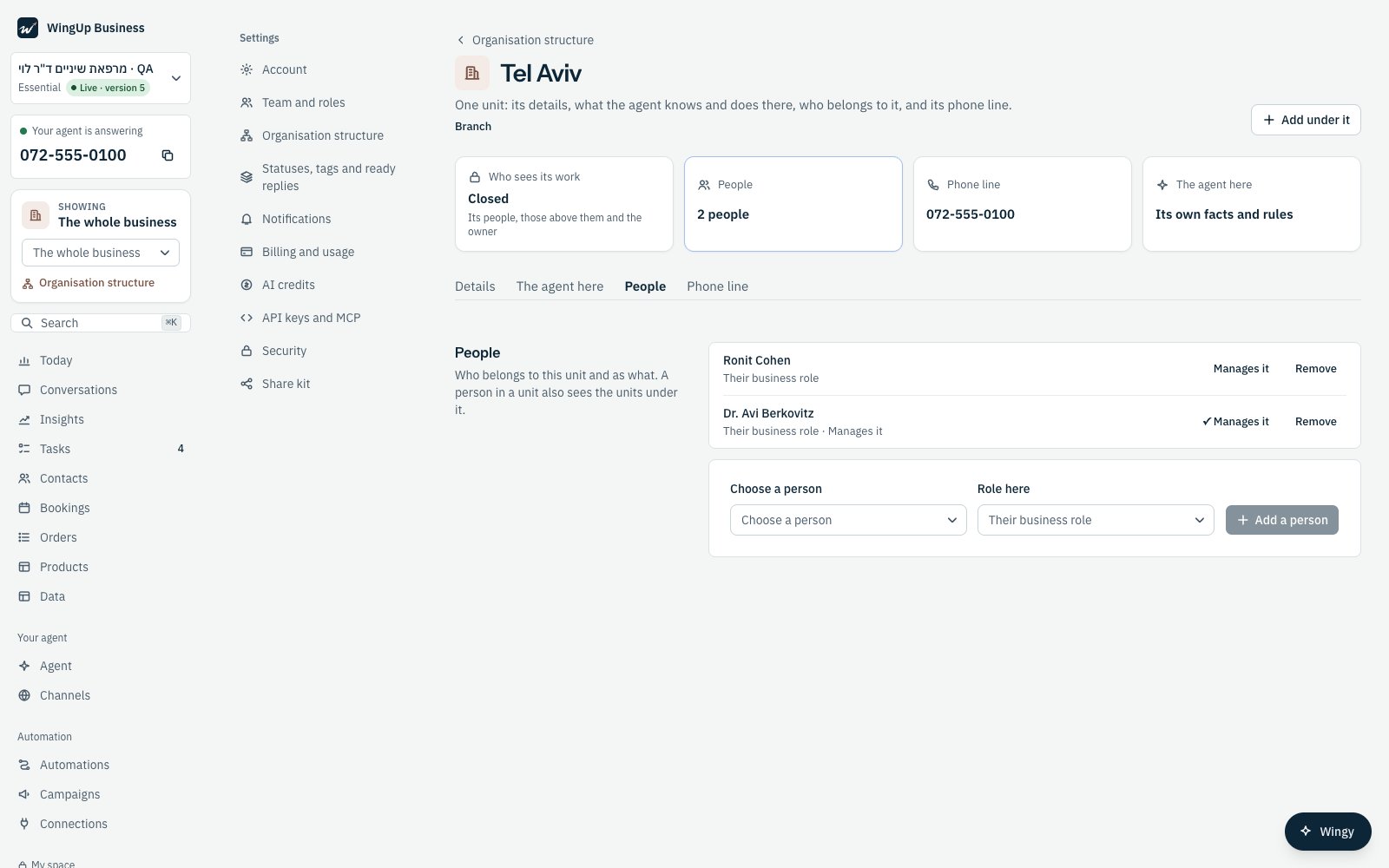
The People tab of Tel Aviv: two people, one of them manages the unit.
From the team screen
In Settings → Team and roles, each person shows their units as chips, with Manages it where they manage one. A person with no unit shows No unit. As the owner, press Units under a person’s name to add or remove their units and their role in each.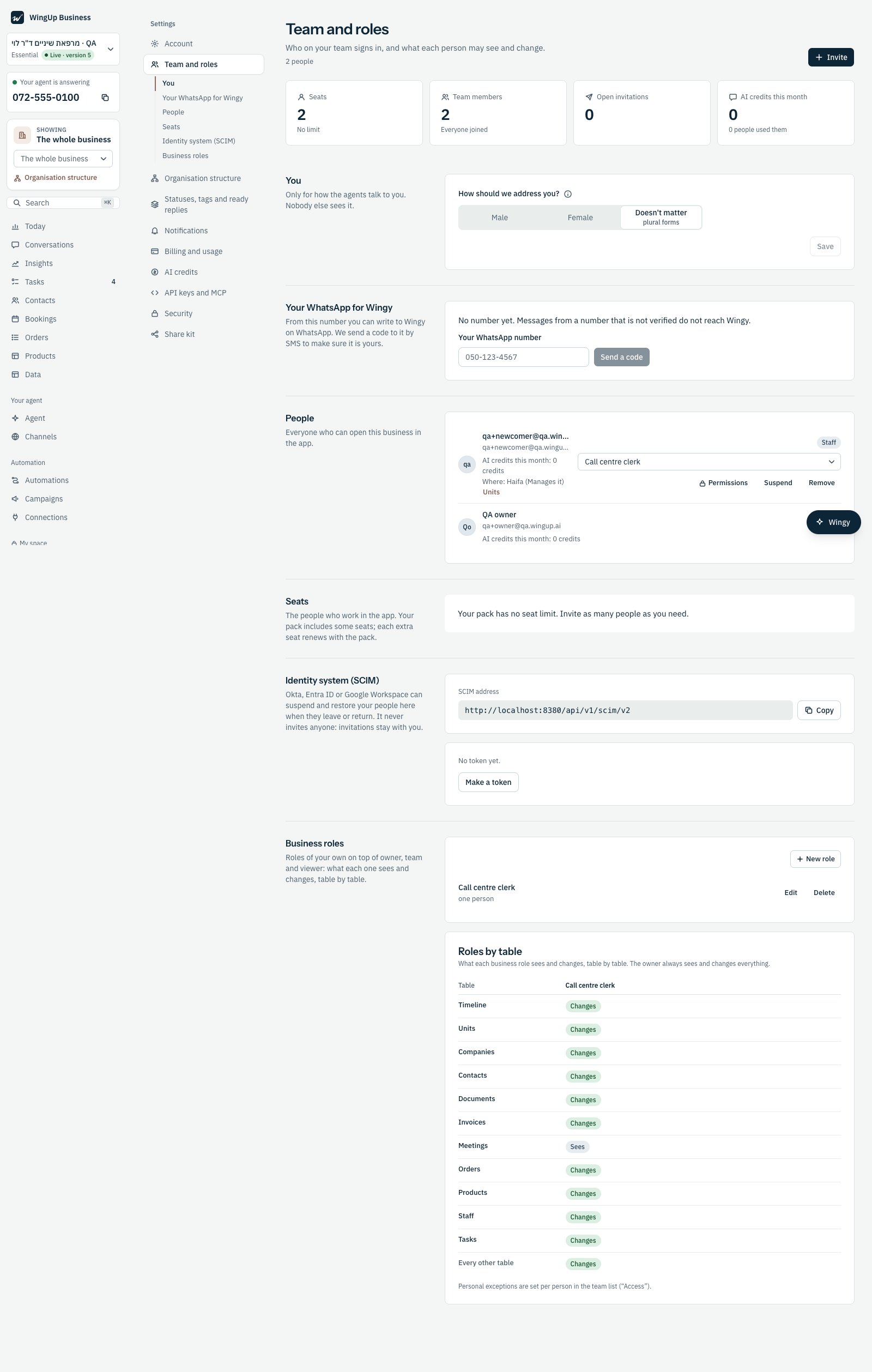
Team and roles: a person's units under their name, and the Units button.
A whole team from a sheet
For a large team, import the people with their units.1
Prepare the sheet
One row per person, with their name and details. Add a column Unit with each person’s unit: its name, its
Code in your systems, or its path such as
Tel Aviv / Eye department. Add an optional column
Manages the unit with yes for a unit’s manager.2
Import it
On the structure page, press Import the team from a sheet, choose the CSV file, and check which field each
column fills.
3
Fix what does not match
A unit name that matches no unit stops the import and names it. Add the unit or fix the name, and import again.
A sheet gives each person one unit. To put someone in a second unit, add it in the app after the import.
From your identity system (SCIM)
If you manage people in Okta, Microsoft Entra ID or Google Workspace, its groups can become units:- a new group becomes a department at the top of the structure (move it under its place in the app);
- its members are put in that unit;
- the group’s external id is matched with the unit’s Code in your systems;
- deleting a group makes its unit inactive and takes its people out of it. Nothing is deleted.