

Before you start
You need the owner’s account. Only the owner adds units and changes where a unit sits, whether it is open, its manager and its code.Adding units
1
Open the structure
In the WingUp app, go to Settings → Organisation structure. As the owner, you can also press
Organisation structure in the card at the top of the sidebar.
2
Add a unit
Press Add a unit. Give it a Name, a Kind (branch, department, clinic, site, district, committee or
team), say what it is Part of, and its City. Press Add.
3
Add the units under it
Open a unit and press Add under it. For example: Tel Aviv → Eye department → Retina clinic. A unit
includes everything under it.
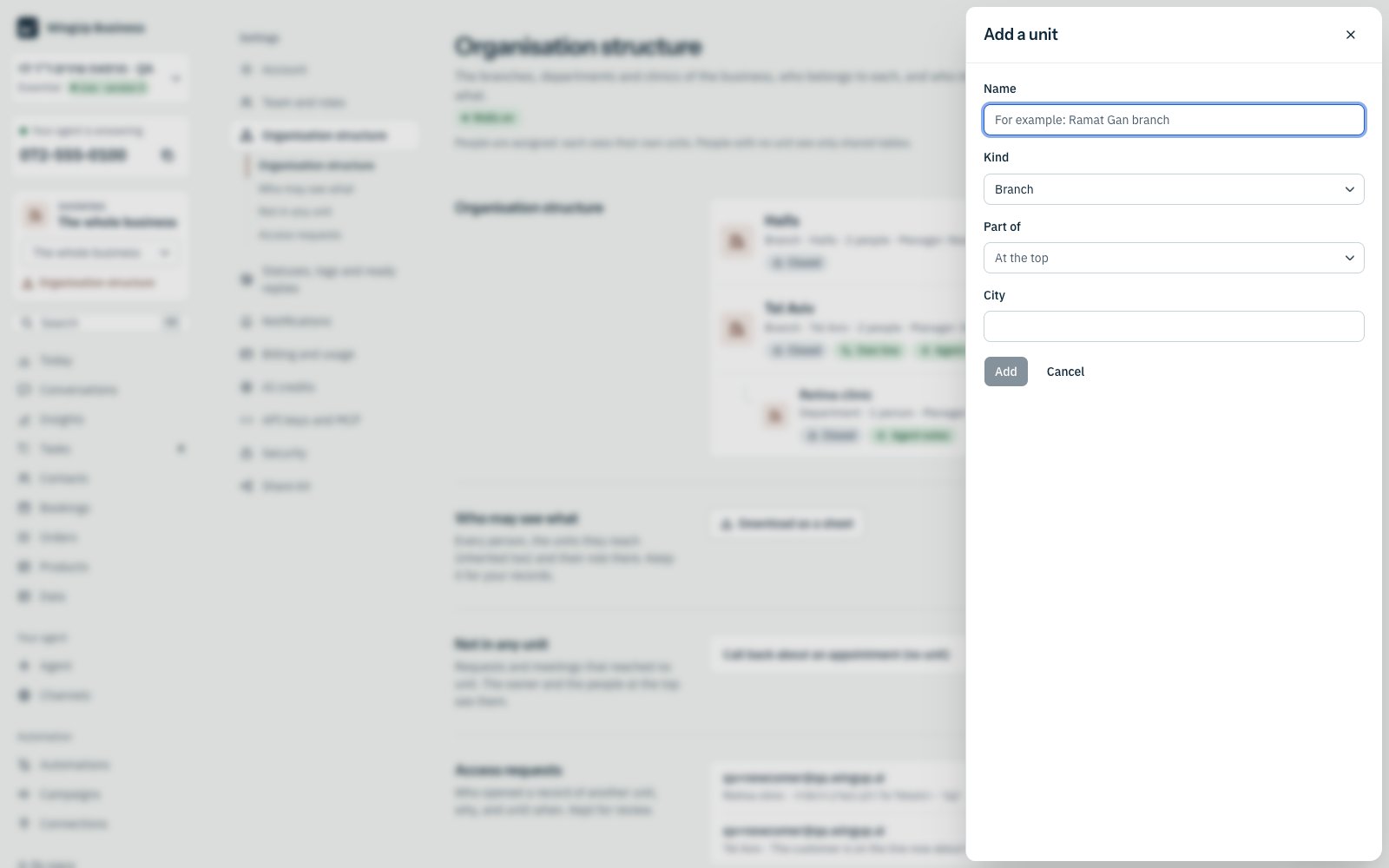
Add a unit: its name, kind, the unit it is part of, and its city.
The structure page
Each row of the tree shows:- the unit’s name, kind, city, how many people belong to it and who manages it;
- Closed or Open to everyone: who sees its work (see Who sees what);
- Own line when a phone number reaches it;
- Agent notes when the agent has its own facts or rules there.
- Who may see what: press Download as a sheet for a list of every person, the units they reach and their role there.
- Not in any unit: requests and meetings that reached no unit. Open one to give it a unit.
- Access requests: who opened a record of another unit, why, and until when. See Request access.
A unit’s page
Open a unit to see it at a glance: four cards say who sees its work, how many people it has, its phone line, and whether the agent has its own facts there. Each card opens its tab.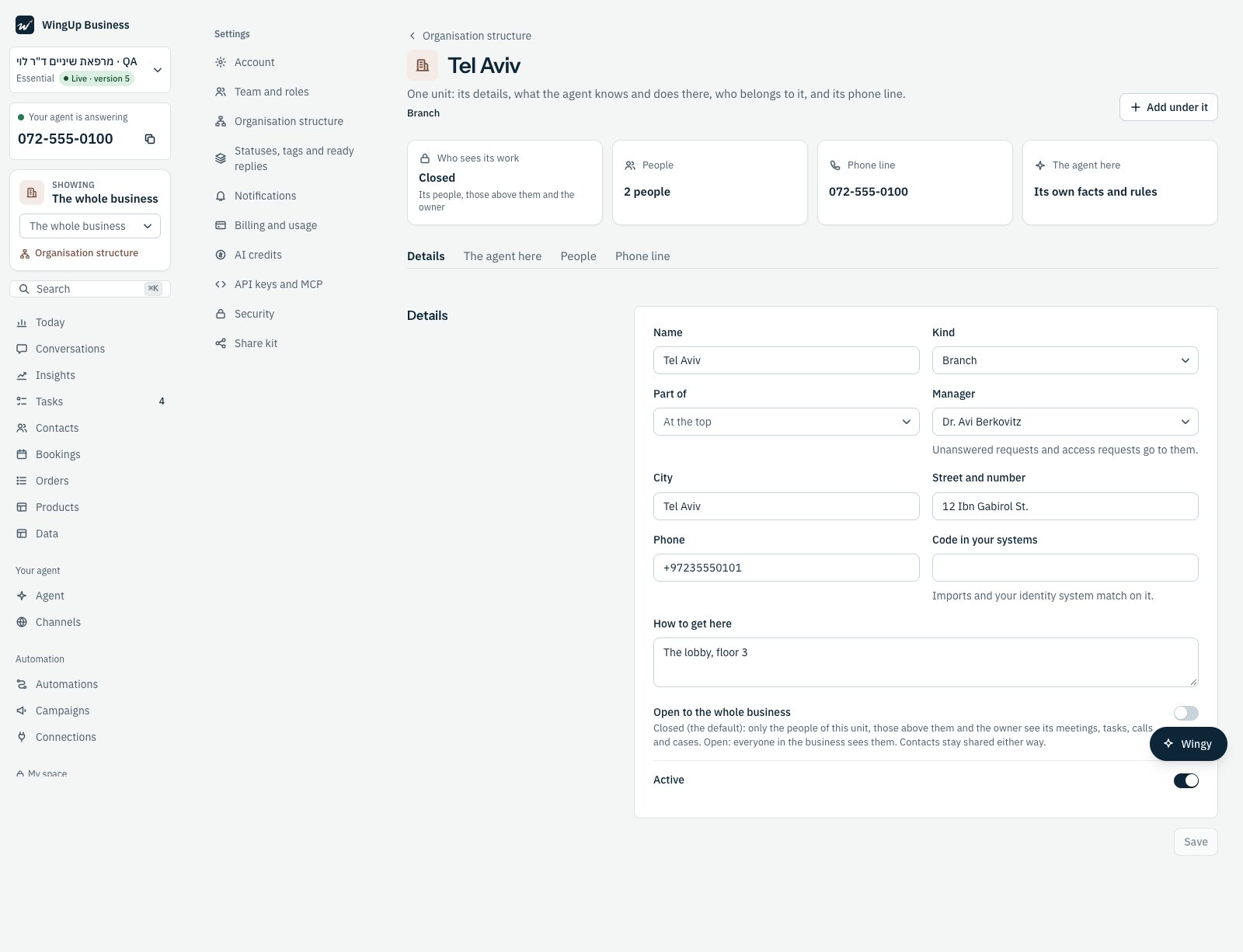
A unit's page: its state at the top, then four tabs.
- Manager. Requests to open a record of this unit go to the manager, as a task in the unit’s queue.
- Code in your systems. Your own id for the unit. A team import and your identity system find the unit by it.
- Active. An inactive unit stays in the tree with its records. The agent does not offer it.
On the phone
The structure page and every unit page work on a phone. The tree keeps its levels, and the state of each unit moves under its name.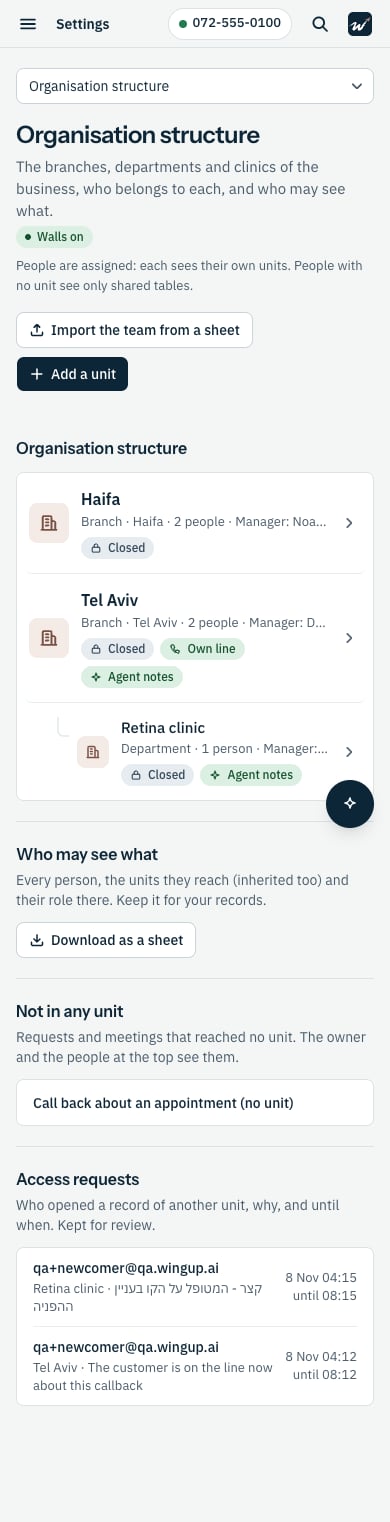
The structure page on a phone.