

Before you start
You need the owner’s account to turn it on for a role. The person who asks needs a business role with the switch on.Turning it on for a role
1
Open the role
Go to Settings → Team and roles. Under Business roles, press Edit next to the role, for example a
call centre role. Or press New role to make one.
2
Turn on the switch
Turn on May request access to other units at the bottom of the role, and save.
3
Give the role to the people
Give that role to the call centre people in the team list.
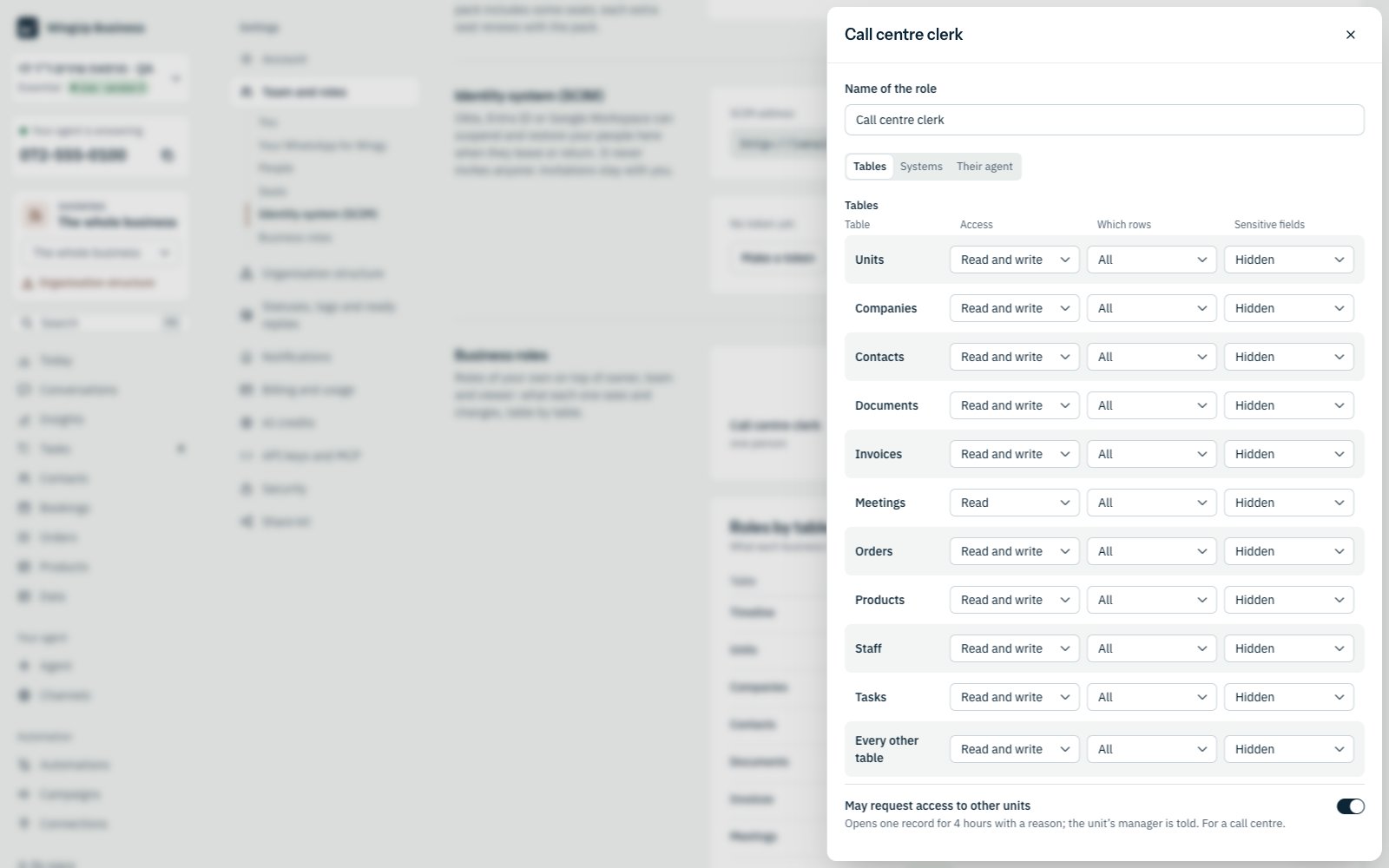
A business role with May request access to other units turned on.
Opening a record
When a person opens a record of a unit they are not in, they see a Locked record page: the kind of record and its unit, never its title or content.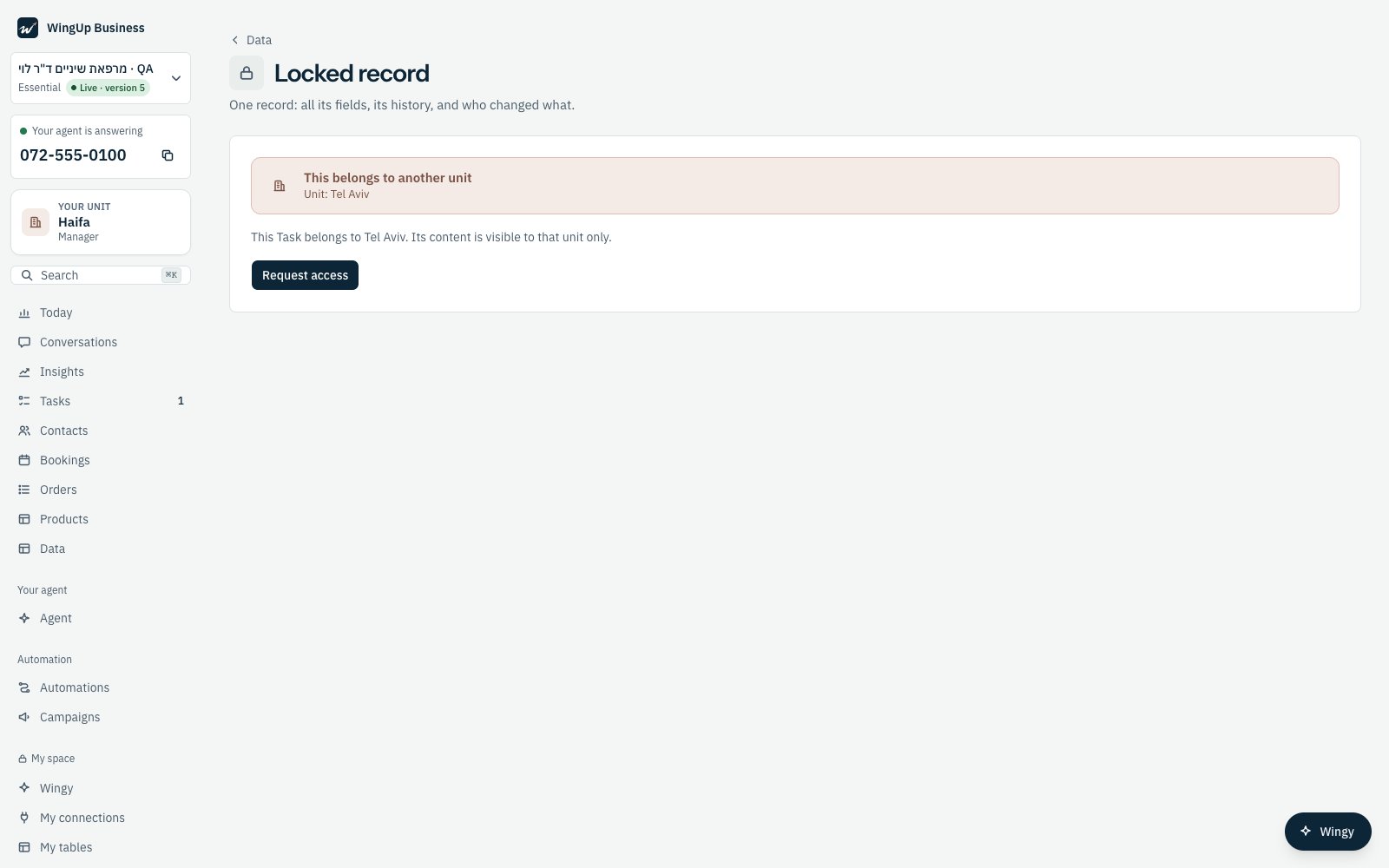
A record of Tel Aviv, opened by a person in Haifa.
1
Press Request access
The page says what will happen before it happens: you see this record only, for 4 hours, the unit’s manager is
told, and the request is kept with your reason.
2
Write the reason
Under Why do you need it?, write at least 10 characters (up to 300). For example: the customer is on the
line about this complaint.
3
Open it
Press Open with this reason. The record opens. After 4 hours it closes again by itself.
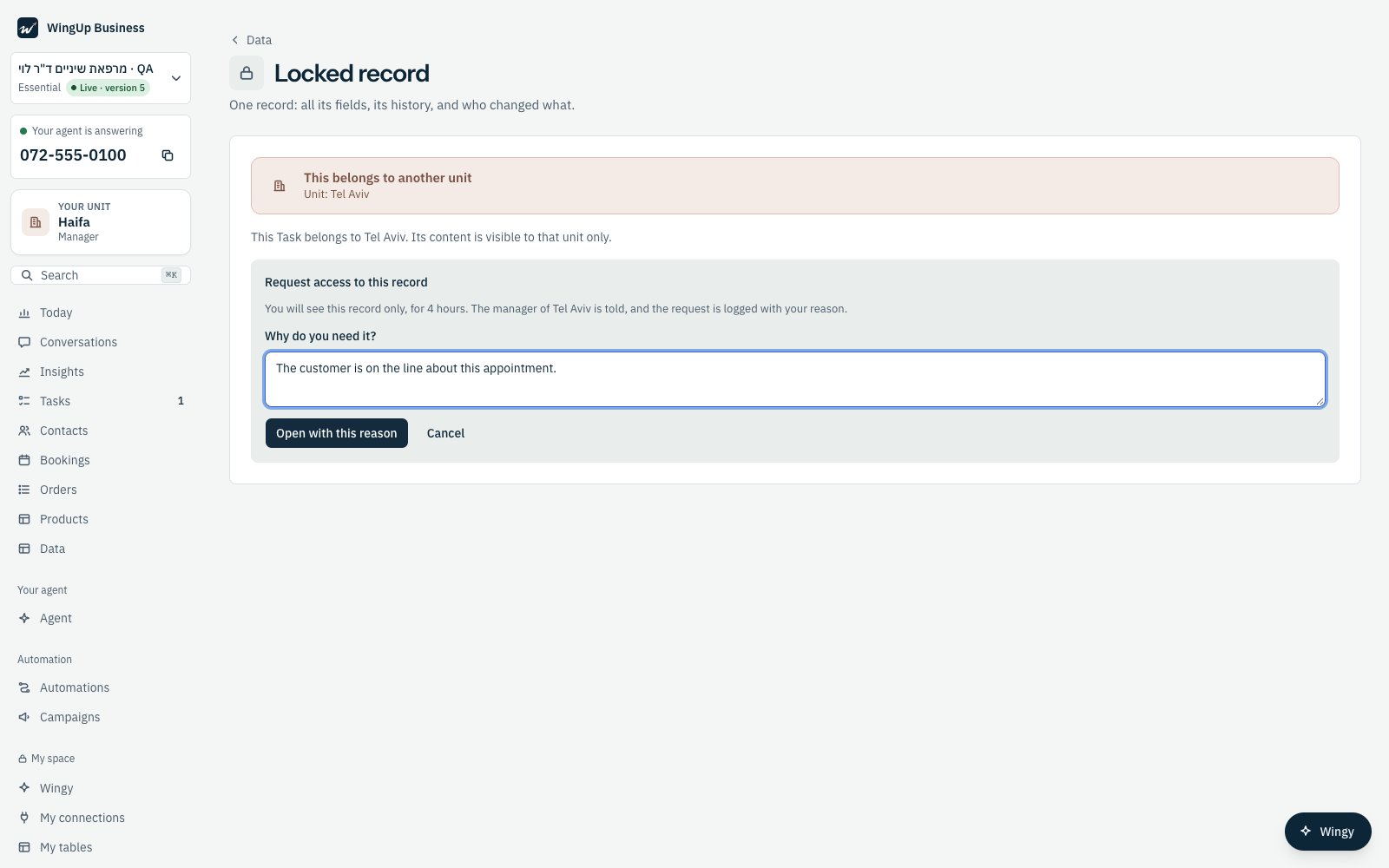
The request, with its reason, before it is sent.
What happens after
- That one record only. The person does not see anything else of the unit.
- The manager is told. The unit’s manager gets a high-priority task in the unit’s queue: who opened which record, why, and until when. A unit with no manager sends it to the owner.
- It is kept. The request is listed under Access requests on the structure page, with the person, the record’s unit, the reason and the time it closes.